

I often judge a PDF app by what happens between receiving a document and actually getting something useful done with it. Opening a file is easy; finding the right page, making a small change, keeping the edited copy organized, and handing it to someone else is where many mobile readers become awkward. PDF Reader, All PDF Viewer, developed by trimt, is built around that complete document routine rather than simple reading alone.
This is a free productivity app for Android, with a Everyone content rating and support beginning at Android 7.0. It has reached over one million installs and holds a 4.0 average from around 8,500 ratings. Those figures suggest that it is not a niche utility, but I would still treat it as a practical everyday tool rather than a full replacement for a desktop PDF workstation.
After using it as an all-purpose document reader, my impression is straightforward: it is most useful when I want one place to open, inspect, and make modest changes to PDFs on a phone. It is less convincing for demanding document production, complex forms, or work that depends on highly precise layout control. The difference comes down to the workflow you need, not the label “all-in-one.”
From an incoming PDF to a usable document
Starting with the file you actually received
A realistic session usually begins outside the app. Someone sends a PDF in a messaging conversation, an attachment arrives in an email, or I download a document while browsing. The first useful question is not whether the reader can display a page; nearly every modern phone can do that. The question is whether the app can become the dependable place I return to when several documents are involved.
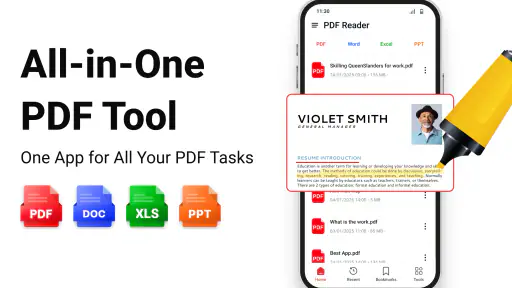
That is where this reader makes sense. Instead of treating PDFs as occasional attachments, I can use it as a central productivity tool for opening documents, reviewing them on a smaller screen, and preparing them for the next person. The store summary describes document management, reading, and editing, and that combination matches the way I would approach it: import or open the file, understand its contents, make the necessary adjustment, and move the resulting document onward.
I would not install it simply because I need to view one PDF once. A phone’s built-in viewer may already handle that job. The stronger reason to choose this app is repeated use: invoices, application forms, manuals, work instructions, study material, or documents that need a quick correction before they are shared.
Reading without losing the thread
Reading a long PDF on a phone is a test of navigation more than raw display quality. I tend to scan first, then return to the page that matters. A useful reader should let me move through a document without making every small task feel like a separate operation. PDF Reader, All PDF Viewer is aimed at that practical middle ground, giving the reading stage a place inside a broader editing workflow.
My advice is to begin by identifying the document’s purpose. If I am checking a form, I look for the fields and instructions before editing. If I am reviewing a report, I first locate the relevant section and confirm that I am working on the correct copy. That habit matters because mobile editing is less forgiving than desktop editing: a rushed tap or an unclear file name can create confusion later, especially when several versions are stored on the same device.
The app is also a reasonable fit for people who read PDFs in short sessions. A phone is convenient when I am away from a desk, waiting for an appointment, or checking a document immediately before a meeting. It is not automatically the best environment for deep study or detailed proofreading. For that, a larger screen, keyboard, and desktop-grade navigation still have an advantage.
Making a small edit instead of rebuilding the document
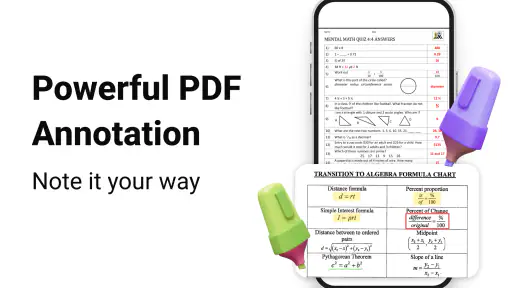
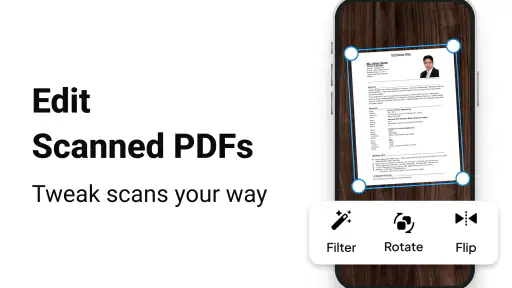
The editing promise is the part that makes this app more interesting than a basic viewer. In everyday use, “editing” often means something modest: preparing a document for submission, correcting a detail, or adjusting a file so another person can understand what needs attention. I find that mobile editing is most valuable when the change is limited and time-sensitive.
A useful workflow is to read the page completely before touching the editing controls. I check whether the document is already the right version, decide exactly what needs changing, and only then begin. This avoids the common mistake of opening editing tools before understanding the source file. It also makes the final handoff cleaner because I am less likely to leave an unnecessary alteration behind.
There is an important trade-off here. An app that combines reading and editing is convenient, but convenience does not mean that every PDF behaves like an ordinary text document. PDFs can contain fixed layouts, scanned pages, unusual fonts, and elements that do not respond like editable paragraphs. I would choose this tool for targeted mobile work, while keeping a desktop editor in reserve for extensive rewriting, complex design changes, or documents where exact formatting is critical.
Preparing the handoff
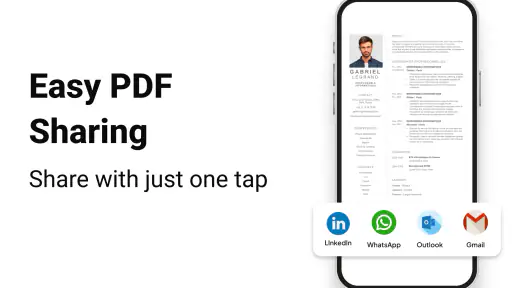
The handoff is where a document workflow either becomes useful or falls apart. After reading or editing, I need to know which file I am sending, whether the result is the intended version, and whether the recipient can open it without additional explanation. PDF Reader, All PDF Viewer fits naturally into this stage because it is designed around managing documents as well as displaying them.
I recommend a simple routine: finish the change, reopen or review the resulting file, and inspect the pages that were affected. Do not assume that saving means the task is complete. On a phone, the most practical quality check is visual: confirm that the text is still legible, that the page order looks right, and that the edit did not distract from the original content.
This is also the point where I would separate working copies from final copies. A file named only “document.pdf” is easy to confuse with an older attachment. Giving the finished copy a clear name before sending it reduces back-and-forth messages and prevents the recipient from opening the wrong version. That organizational step is not glamorous, but it is one of the strongest reasons to use a dedicated PDF utility instead of repeatedly opening files through unrelated apps.
A realistic everyday example
Imagine that I receive a school or workplace form while away from my computer. I open it on the phone, read the instructions, locate the section that needs attention, and use the editing side of the app for the limited change required. Before sending it back, I review the affected page, check that the document still looks coherent, and pass the finished copy to the person who requested it.
The benefit is not that the phone suddenly becomes a complete office suite. The benefit is that the task can move from incoming attachment to usable handoff without waiting until I reach a laptop. That is the kind of situation in which this app earns its place: a short chain of document actions where speed and portability matter more than advanced production tools.
Where the handoff can become awkward
The same workflow exposes the app’s limits. If the recipient expects a carefully designed publication, a heavily revised contract, or a document with complex interactive behavior, I would not rely on a mobile reader alone. The smaller screen makes precision harder, and a combined reader-editor can encourage me to attempt work that is better handled in a specialized application.
There is also a human limitation: mobile documents invite multitasking. I may receive the file in one app, edit it in another, and send it through a third. Each transition creates an opportunity to choose the wrong attachment or lose track of the latest copy. The best way to reduce that friction is to make the PDF app the review checkpoint, not merely the place where I press “open.”
Who will get the most from it
I think this app suits students, office workers, freelancers, and anyone who regularly receives PDFs but does not want a separate tool for every small action. It is especially appealing to people who work from a phone, need to inspect documents quickly, and occasionally need to prepare a file before forwarding it.
It can also help households that deal with forms, instructions, receipts, and downloaded documents. The Everyone rating makes it approachable for a broad audience, although the usefulness still depends on the person’s expectations. Someone who only reads a PDF once may prefer the simplest viewer already installed on the device.
On the other hand, I would skip it if my main work involves professional page layout, long-form writing, detailed annotation systems, or frequent collaboration around complex revisions. In those cases, a desktop PDF suite or a dedicated document editor will usually offer a more comfortable workspace. This app is strongest as a mobile bridge between receiving a PDF and completing a manageable action on it.
How it compares with the usual alternatives
Compared with a basic built-in viewer, PDF Reader, All PDF Viewer has a clearer reason to exist because it brings reading and document handling into one productivity-focused destination. The built-in option may be quicker for a single file, but it often feels like a temporary doorway rather than a place to manage a recurring workflow.
Compared with a cloud-centered office suite, this app is more focused on the PDF itself. An office suite may be preferable when I need to convert content into an editable word-processing document, collaborate with several people, or maintain a broader project space. A dedicated PDF reader is more appropriate when the original format must remain central and I mainly need to inspect or adjust that file.
Compared with a specialist PDF editor, the likely advantage is simplicity and portability. A specialist tool may be better for advanced markup, detailed form handling, or exact revisions, while this app is easier to justify for ordinary phone-based tasks. The choice is therefore not “which app is universally best?” but “how much PDF control do I need before the phone stops being the right workspace?”
Cost, version, and what to expect
The app is free to install, with in-app purchases listed at $14.99 per item. That makes trying the basic workflow relatively low-risk, but I would pay attention to which editing actions are available without an upgrade before making it part of a serious routine. A free entry point is useful, yet the value depends on whether the functions I actually need remain convenient in the unpaid experience.
It was released on June 26, 2025, and the current version is 3.5. I would keep the app updated through the normal store process, especially when using it for documents that matter. The Android requirement of 7.0 or newer also means it remains accessible to many older devices, which is helpful if I am trying to turn an existing phone into a practical document station rather than buying new hardware.
My final workflow verdict
After following the complete path from incoming file to final handoff, I see PDF Reader, All PDF Viewer as a useful middle option. It offers more purpose than a bare viewer without asking me to treat a phone as a full desktop publishing environment. Its best result comes from disciplined use: identify the right file, read before editing, make only the necessary change, inspect the finished copy, and then send that version.
The app’s real strength is continuity: it keeps reading, modest editing, and document preparation close together. That continuity can save time when I am away from a computer, but it does not remove the need for careful version control or a larger tool for demanding work.
My recommendation is positive for anyone who regularly handles PDFs on Android and wants a free productivity app that can accompany the whole short workflow. I would recommend looking elsewhere for heavy document production, exact layout work, or advanced collaboration. For everyday forms, quick reviews, downloaded manuals, and last-minute handoffs, though, PDF Reader, All PDF Viewer is a sensible app to keep available.
In short, I would install it when PDFs are part of my routine rather than an occasional nuisance. The developer, trimt, has positioned it as a broad document utility, and its 4.0 average from around 8,500 ratings reflects a generally favorable reception. Just remember what makes it work best: use it as a mobile document checkpoint, not as a promise that every PDF task belongs on a phone.


